
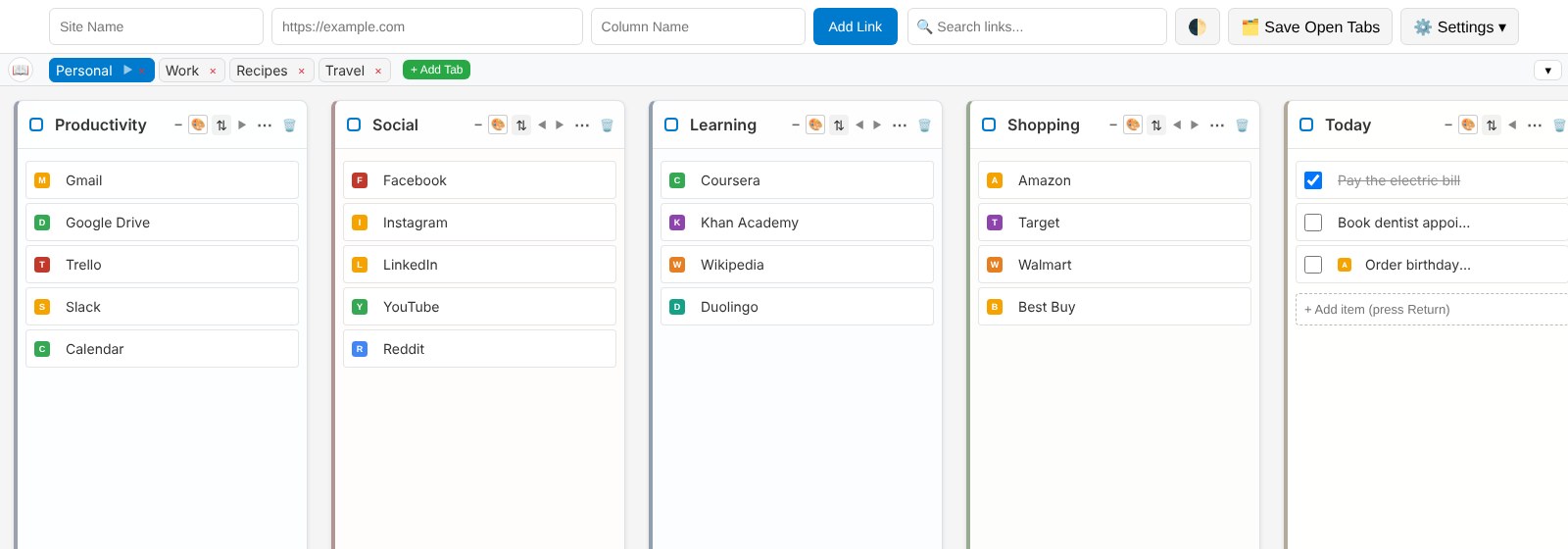
Everything in one place
Open a new tab and your bookmarks are right there — organized your way.
Columns and tabs
Group sites into colored columns, and keep separate tabs for Personal, Work, Shopping — anything you like.
Save open tabs
Save every open tab — or just the ones you pick — into a column with one click. Or press S.
Toolbar button
Save the page you're on into any tab and column, without leaving the page.
Search everything
Find any bookmark across all your tabs in seconds.
Checklists
Turn any column into a simple to-do list with tick boxes.
Share a column
Copy a column as a neat list of links, or as a small file a friend can import.
Undo
Deleted something by mistake? Click Undo and it's back.
Clean-up tools
Find duplicate bookmarks and check for links that no longer work.
Backups
14 days of automatic backups, plus backup files you can save any time.
🔒 Your bookmarks stay yours
Everything NestlyTab saves stays on your own computer. There are no accounts, no servers, no ads, and no tracking. Website icons come from Chrome itself, so your bookmark list is never sent to anyone. Read the Privacy Policy.
Get NestlyTab for your browser
All versions are free and have the same features. (Firefox users: here is the Firefox privacy policy.)
🔷 Adding NestlyTab to Microsoft Edge
- Open Edge and go to NestlyTab in the Chrome Web Store.
- If a blue bar at the top says you can add extensions from the Chrome Web Store, click Allow extensions from other stores, then click Allow.
- Click Get (it may say Add to Chrome — that's fine), then click Add extension.
- Open a new tab — NestlyTab appears.
Get started in a minute
- Click Add to Chrome (using Edge? see Adding NestlyTab to Edge; using Firefox? click Add to Firefox), then click Add extension (Firefox says Add).
- Open a new tab — NestlyTab appears.
- Type a Site Name, a web address and a Column Name at the top, then click Add Link.
- Or bring in your existing bookmarks: ⚙️ Settings → 📚 Import Chrome Bookmarks.
Help & support
Everything you need, in plain English.
User Guide
Step-by-step help with an example for every feature. You can save it as a PDF too.
Open the guide →Ask a question
Have a question or found a problem? Post it on NestlyTab's Support page in the Chrome Web Store.
Go to Support →Privacy Policy
Exactly what NestlyTab does with your information (short answer: nothing leaves your computer).
Read the policy →